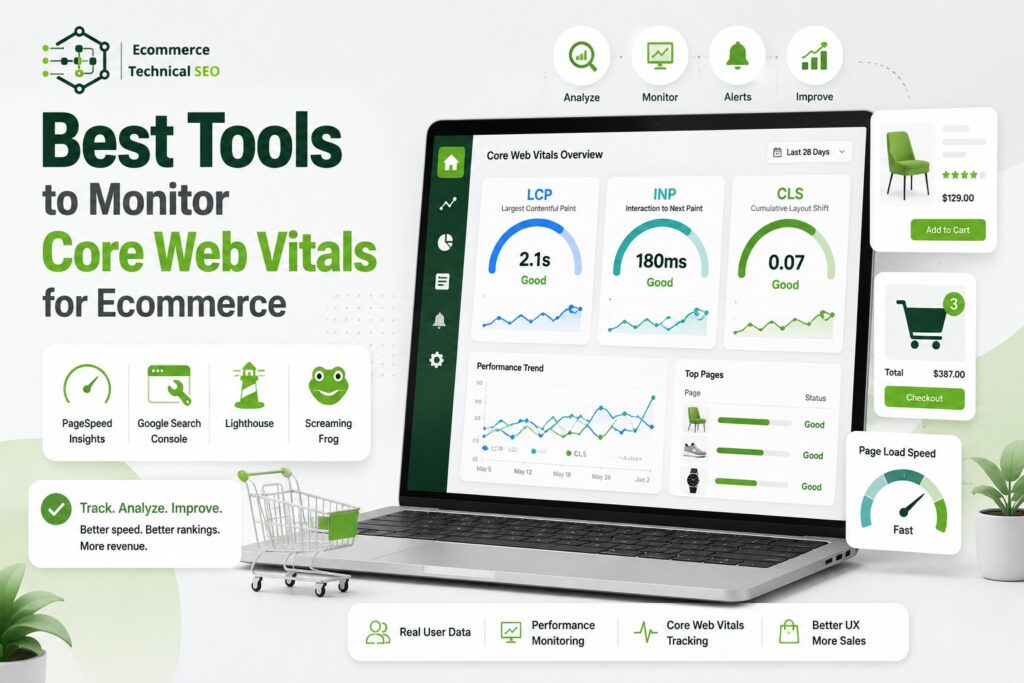


Core Web Vitals monitoring for ecommerce is not a one-tool job. A store may look fast in a lab test while real mobile shoppers still experience slow product images, delayed filters, unstable banners, or laggy add-to-cart interactions.
The best setup combines field data, page-level diagnostics, sitewide crawling, and ongoing monitoring. This helps teams find problems, confirm fixes, and catch regressions before they spread across templates.
Best Core Web Vitals Tools for Ecommerce at a Glance
| Tool | Best for | Data type | Ecommerce use |
| Google Search Console | Finding affected URL groups | Field/CrUX | Spot problems across product and category page groups |
| PageSpeed Insights | Fast page diagnosis | Field + lab | Test priority PDPs, PLPs, homepage, and landing pages |
| CrUX Vis / CrUX APIs | Historical real-user trends | Field | Track whether user experience improves over time |
| Lighthouse / Lighthouse CI | Development testing | Lab | Catch performance regressions before deployment |
| Screaming Frog + PSI API | Testing URLs at scale | Field + lab | Compare performance across large ecommerce templates |
| WebPageTest | Deep loading analysis | Synthetic | Diagnose waterfalls, images, scripts, CDN, and third parties |
| DebugBear | Continuous CWV monitoring | RUM + synthetic + CrUX | Alert teams to regressions and investigate real users |
| SpeedCurve | Performance budgets and RUM | RUM + synthetic | Track releases, third-party scripts, and template trends |
| GTmetrix | Accessible performance testing | Lab + CrUX | Run repeatable tests and review loading behavior |
For most stores, start with Search Console, Page Speed Insights, and Screaming Frog. Add RUM or continuous synthetic monitoring when frequent releases, heavy JavaScript, or multiple markets increase performance risk.
What Should an Ecommerce Store Monitor?
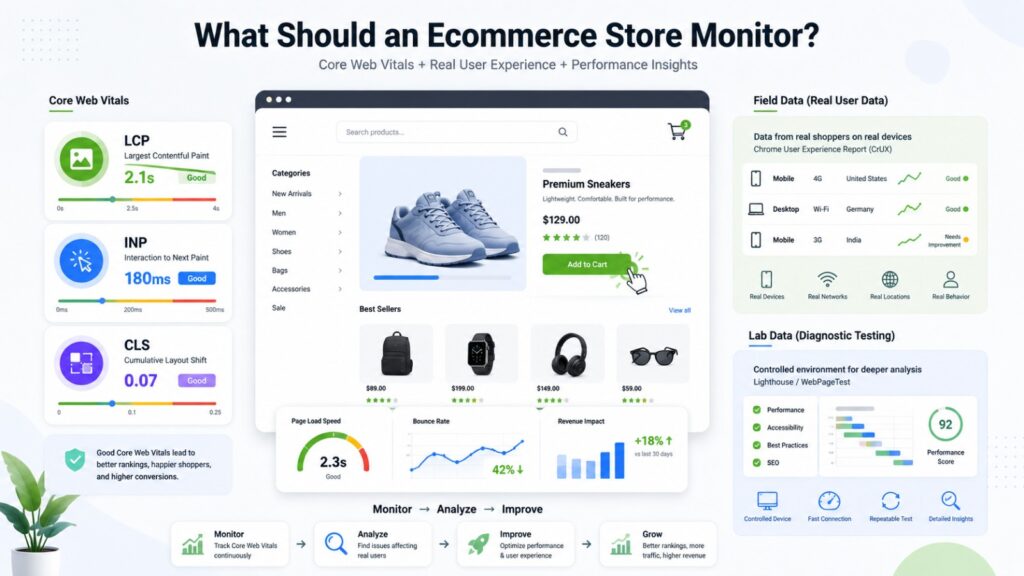
Google currently uses Largest Contentful Paint, Interaction to Next Paint, and Cumulative Layout Shift as the three Core Web Vitals. The recommended “good” thresholds are measured at the 75th percentile, separately across mobile and desktop experiences.
| Metric | Good | What it means | Common ecommerce problem |
| LCP | ≤ 2.5 seconds | Main content loads quickly | Slow hero or product image |
| INP | ≤ 200 ms | Page responds quickly to interaction | Filters, variant selectors, search, or cart actions lag |
| CLS | ≤ 0.1 | Layout stays visually stable | Reviews, banners, images, or widgets shift content |
A complete Core Web Vitals for ecommerce review should look beyond pass/fail numbers. TTFB, image delivery, JavaScript, long tasks, third-party scripts, and LCP subparts often reveal why a template is slow.
Field Data vs. Lab Data
Field data comes from real visitors. Google’s Chrome User Experience Report, or CrUX, powers reporting in tools such as Search Console and PageSpeed Insights. It reflects real devices, connections, and behavior.
Lab data runs a controlled test. Lighthouse and WebPageTest help reproduce problems and find technical causes. Lab results can change immediately after a fix, while CrUX field data reflects a rolling user-data window.
Use field data as the outcome. Use lab data as the diagnostic layer.
1. Google Search Console: Best for Finding Affected Page Groups
Search Console is a strong starting point because its Core Web Vitals report groups similar URLs into “Good,” “Needs improvement,” and “Poor” states using real-world usage data.
For large stores, this shows whether a wider product, category, blog, or other template group is failing without checking every URL.
Use Search Console to:
- Separate mobile and desktop issues.
- Find the metric causing a URL group to fail.
- Open example URLs for deeper testing.
- Validate a fix after deployment.
Do not use Search Console alone for debugging. It shows where the real-user problem exists.
If performance sits beside indexing issues, a focused Google Search Console error fixing service for ecommerce can help separate speed problems from broader technical SEO issues.
2. PageSpeed Insights: Best for Fast Page-Level Diagnosis
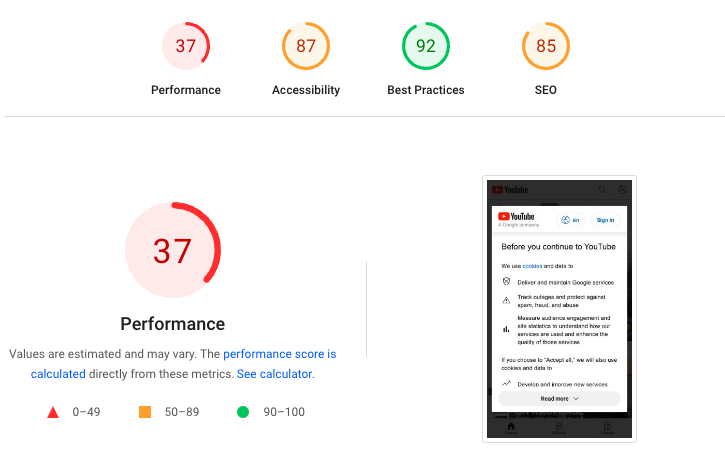
PageSpeed Insights is the quickest tool for checking an important ecommerce URL. It combines CrUX field information, when available, with Lighthouse lab diagnostics and improvement opportunities.
Test representative URLs, not only the homepage. PDPs can fail because of image galleries, review widgets, personalization, recommendation carousels, or variant scripts even when the homepage passes.
Use PageSpeed Insights on:
- A high-traffic category page.
- A best-selling product page.
- A promotion or campaign landing page.
- A page using a different theme or template.
- A URL Search Console lists as an example problem.
Pay attention to the actual metric and diagnostic opportunities, not only the Lighthouse performance score.
3. CrUX Vis and CrUX APIs: Best for Historical Field Trends
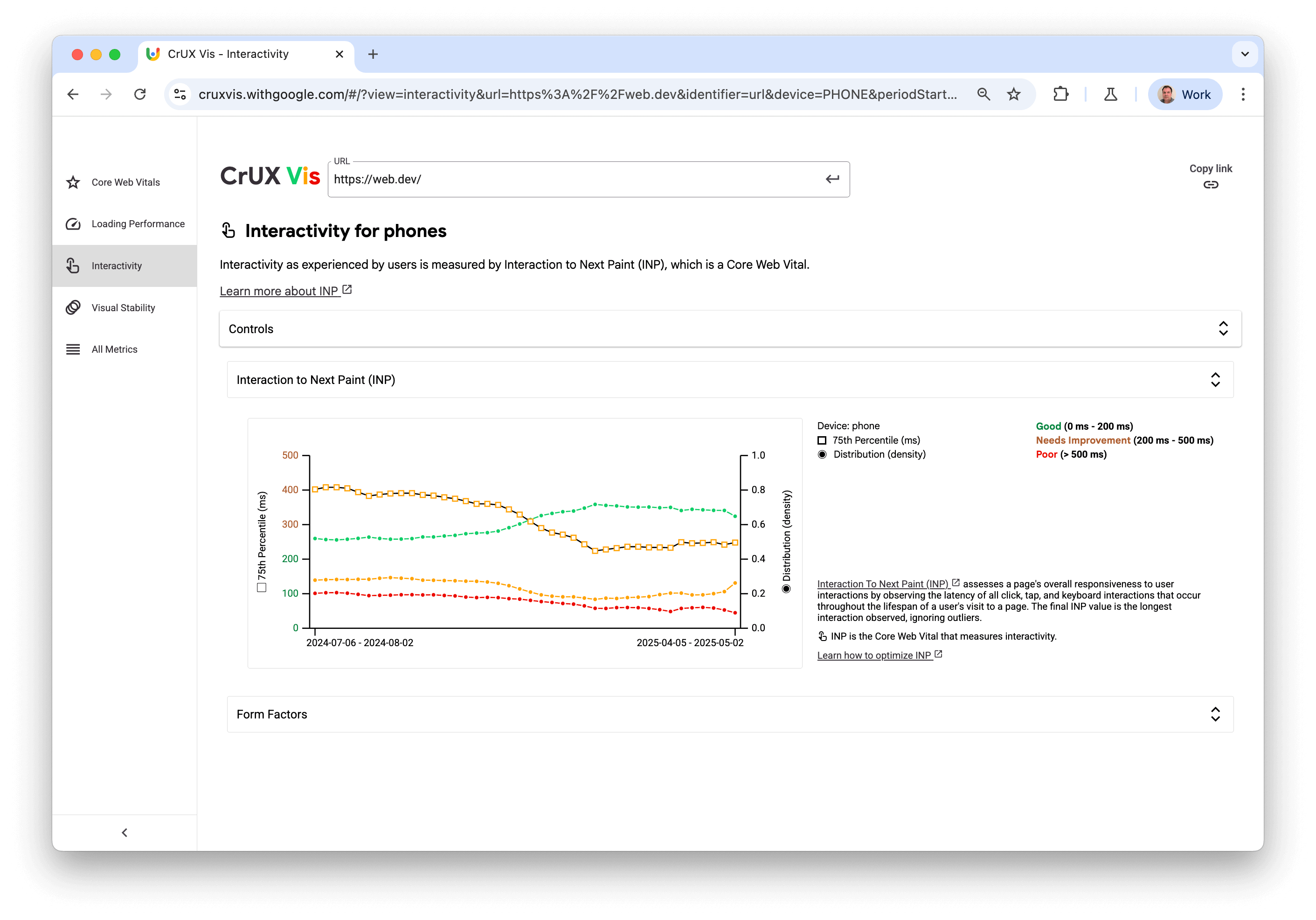
CrUX Vis has replaced the older CrUX Dashboard as Google’s supported first-party option for viewing historical CrUX trends. It can show URL or origin performance and segment available data by device.
After a technical change, CrUX history shows whether LCP, INP, or CLS improves for real shoppers over time. A one-off PageSpeed test cannot prove that.
CrUX Vis also exposes supporting performance information such as TTFB and LCP-related data, which can help narrow down loading problems.
For large stores, consider the CrUX API or History API when automated reporting is needed across priority URLs, devices, or markets.
4. Lighthouse and Lighthouse CI: Best Before Deployment
Lighthouse is an automated lab tool that audits performance and other page-quality areas. Developers can run it in Chrome DevTools, from the command line, or as part of development workflows. Lighthouse CI can help identify regressions before release.
Set checks around representative templates:
- Product detail page.
- Product listing or category page.
- Search results page.
- Content landing page.
- JavaScript-heavy ecommerce flows where testing is practical.
Treat Total Blocking Time as a useful lab diagnostic for main-thread pressure, but do not confuse it with field INP. Real-user interaction data is still needed to understand shopper responsiveness.
5. Screaming Frog + PageSpeed Insights: Best for Ecommerce Scale
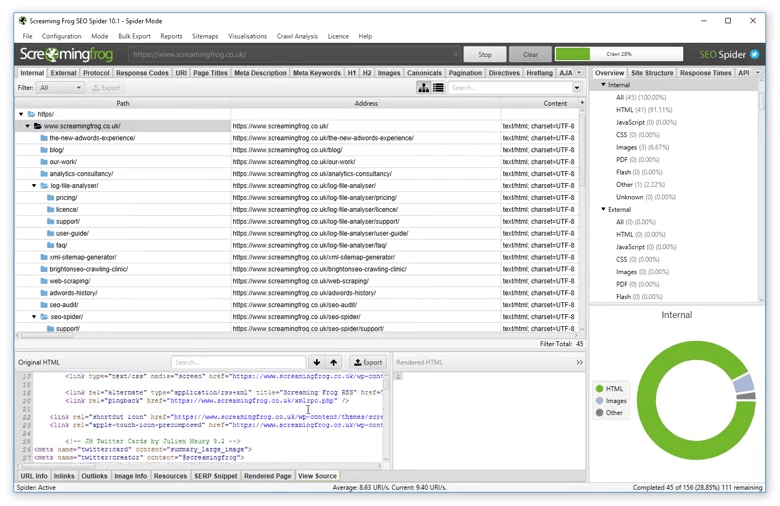
PageSpeed Insights is strong per URL, but ecommerce SEO needs template-level comparison. Screaming Frog connects to the PageSpeed Insights API and can pull performance information directly into a crawl.
This lets you review speed information beside status codes, canonicals, indexability, headings, internal links, and page templates.
Crawl the store, connect PSI, then segment URLs by PDP, PLP, blog, brand, or other template patterns. Look for clusters of slow URLs instead of isolated problems.
This is also why a Screaming Frog audit before scaling ecommerce SEO is useful before expanding content or link acquisition.
6. WebPageTest: Best for Deep Loading and Third-Party Analysis

WebPageTest is useful when a page is slow and you need to understand the loading sequence.
It supports testing across different devices, locations, connection profiles, and browsers. Its detailed testing can help teams investigate Core Web Vitals, loading waterfalls, resources, and performance changes.
For ecommerce sites, waterfalls can expose:
- Oversized product images.
- Delayed fonts.
- Render-blocking resources.
- Tag manager scripts.
- Review platforms.
- Personalization tools.
- Third-party apps and widgets.
Test the same URL before and after a release using the same device, location, and connection profile.
7. DebugBear: Best for Continuous Core Web Vitals Monitoring
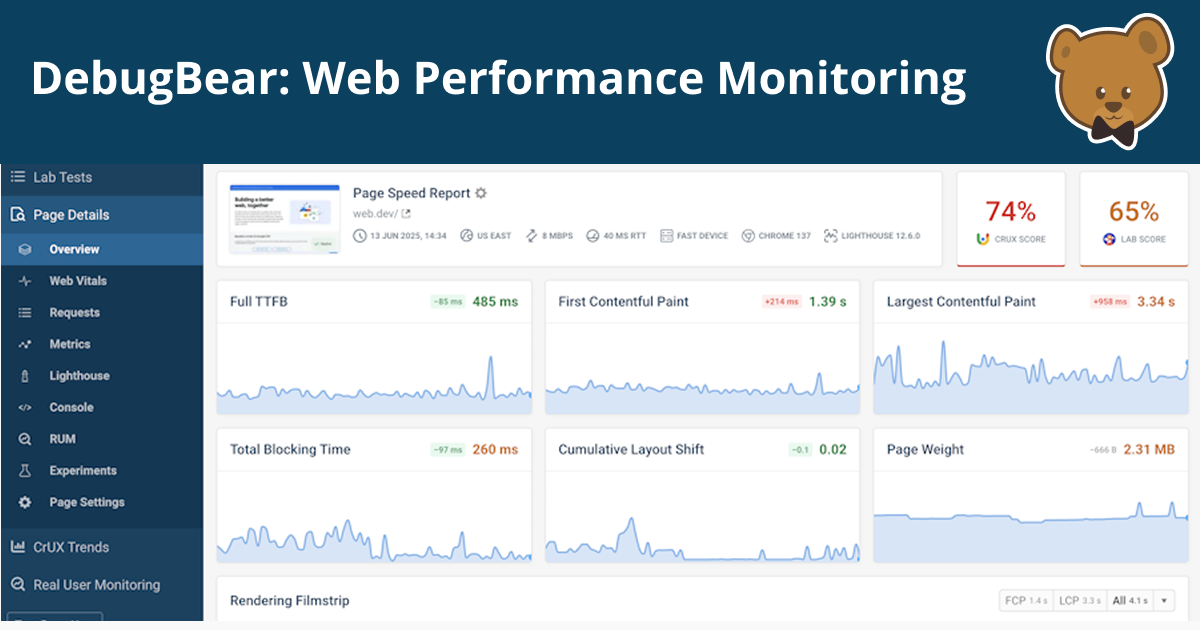
DebugBear combines scheduled lab testing, CrUX tracking, and real user monitoring, making it useful for stores that need alerts instead of occasional checks.
RUM can show which devices, locations, pages, and interactions create poor experiences.
That is especially useful for INP because a slow interaction may appear only after shoppers use filters, navigation, variant selectors, search, or add-to-cart controls.
Use continuous monitoring when performance changes frequently because of deployments, apps, experiments, merchandising scripts, or third-party tags.
8. SpeedCurve: Best for Performance Budgets and Release Tracking
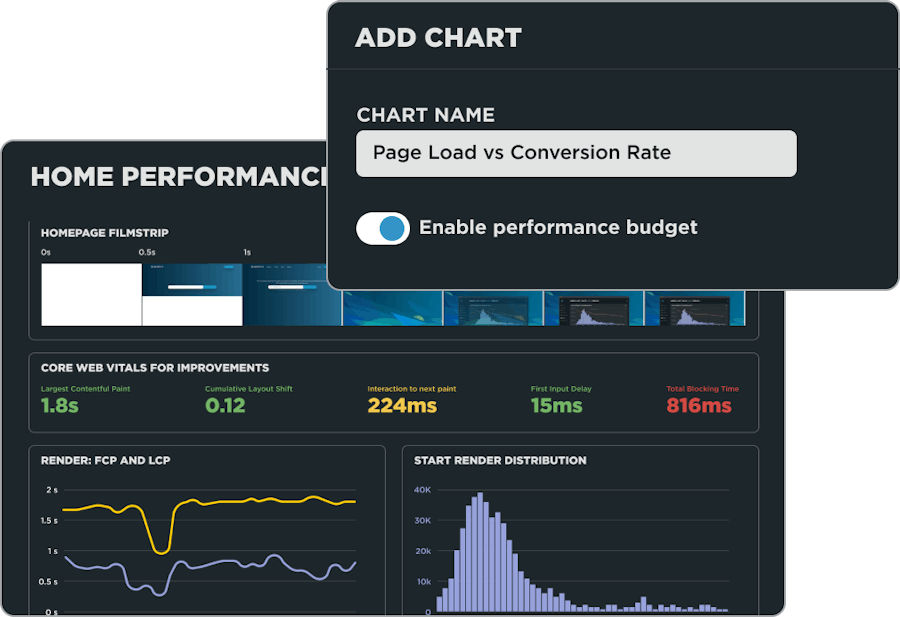
SpeedCurve combines synthetic monitoring and RUM with dashboards for Web Vitals, JavaScript, third parties, and historical trends.
Performance budgets are useful for ecommerce teams with frequent releases. Instead of discovering a slowdown later, teams can track limits and investigate when an important metric or page-weight threshold regresses.
This approach is useful when developers, SEO specialists, and product teams need one shared view of performance.
9. GTmetrix: Best for Repeatable Tests and Clear Reports
GTmetrix offers an accessible interface with Lighthouse-based diagnostics, waterfalls, repeat testing, monitoring, and CrUX data.
It works well for validating a known page or comparing test runs.
For very large ecommerce sites, pair it with a crawler or dedicated monitoring platform rather than manually testing hundreds or thousands of URLs.
For tools covering technical SEO beyond performance, see these ecommerce SEO tools.
A Practical Core Web Vitals Monitoring Workflow
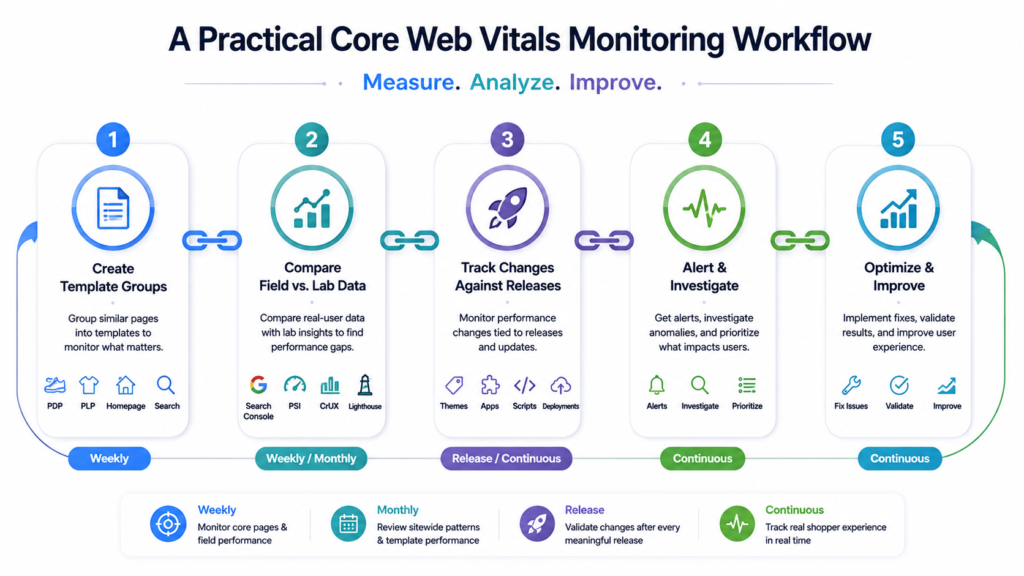
Build a monitoring set that represents the templates and revenue paths that matter instead of testing random URLs.
| What to monitor | Example pages | Recommended tool | Frequency |
| Google field status | URL groups | Search Console | Weekly |
| Priority templates | PDP, PLP, homepage | PSI + CrUX Vis | Weekly or after major changes |
| Sitewide patterns | Thousands of crawlable URLs | Screaming Frog + PSI | Monthly or after template releases |
| Release regression | Representative templates | Lighthouse CI / WebPageTest | Every meaningful release |
| Real shopper experience | High-traffic templates and interactions | RUM platform | Continuous |
Step 1: Create Template Groups
Separate product, category, brand, editorial, search, and other important page types. Performance fixes often apply at template level rather than to one URL.
This segmentation also makes an ecommerce technical SEO audit easier because crawl, indexation, internal linking, and performance patterns can be reviewed together.
Step 2: Compare Field and Lab Results
If field LCP is poor but a lab test looks fast, investigate device mix, geography, server response, caching, third-party scripts, and real product assets.
If lab performance is poor but field data passes, the issue may be limited to test conditions. Do not make risky sitewide changes only to chase one lab score.
Step 3: Track Changes Against Releases
Record theme updates, app installations, tag changes, merchandising releases, and experiments beside performance trends.
On Shopify stores, app and theme changes can alter JavaScript and rendering across many templates. A Shopify technical SEO expert should review the template impact, not only one test URL.
Which Core Web Vitals Tool Should You Choose?
| Situation | Recommended stack |
| Small store or early audit | Search Console + PageSpeed Insights |
| Large catalog with many templates | Search Console + Screaming Frog + PSI |
| Development team shipping often | Lighthouse CI + WebPageTest + CrUX |
| High-revenue store needing alerts | RUM platform + synthetic monitoring + Search Console |
| Agency managing several stores | Screaming Frog + CrUX/API reporting + monitoring platform |
No single tool answers every question. Search Console surfaces real-user issues, PSI and Lighthouse diagnose them, Screaming Frog finds patterns at scale, and RUM or synthetic monitoring tracks changes.
Common Core Web Vitals Monitoring Mistakes on Ecommerce Sites
Testing Only the Homepage
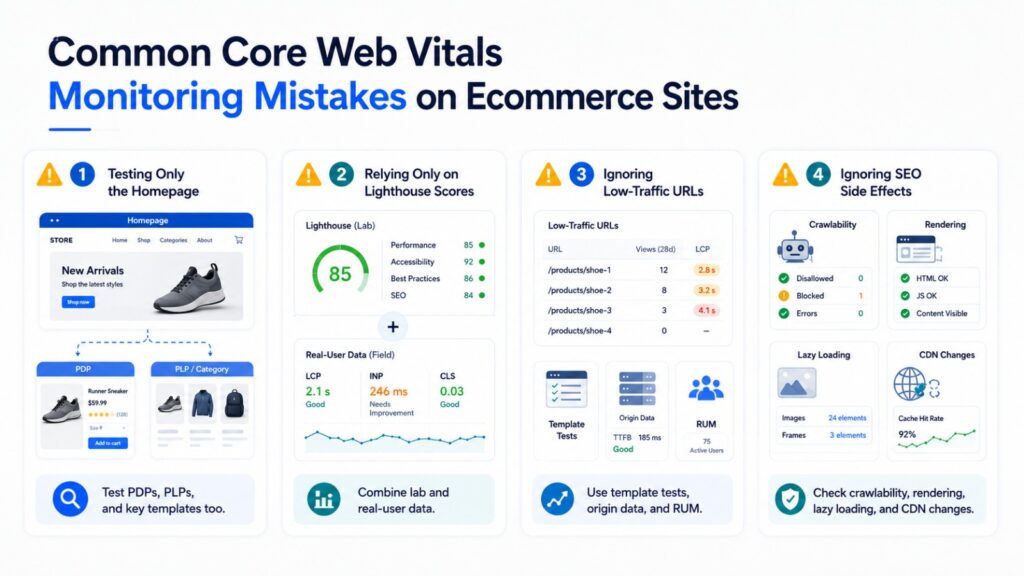
The homepage may use different assets and scripts from PDPs or PLPs. Always test templates that drive organic traffic, product discovery, and revenue.
Treating a Lighthouse Score as the Core Web Vitals Result
A Lighthouse performance score comes from a controlled lab test. Core Web Vitals are designed around real-world user experience. Use both sources, but do not treat them as interchangeable.
Ignoring Low-Traffic URLs With No Field Data
CrUX may not provide useful page-level information for every low-traffic URL.
When URL data is unavailable, use origin-level evidence, representative template testing, lab diagnostics, and your own RUM where available.
Fixing Performance Without Checking SEO Side Effects
Lazy loading, JavaScript changes, CDN rules, and rendering changes can affect crawlability or content discovery.
Review performance work alongside crawlability vs. indexation for ecommerce SEO before rolling major changes across the catalog.
Run a Screaming Frog Technical SEO Audit Before Scaling SEO
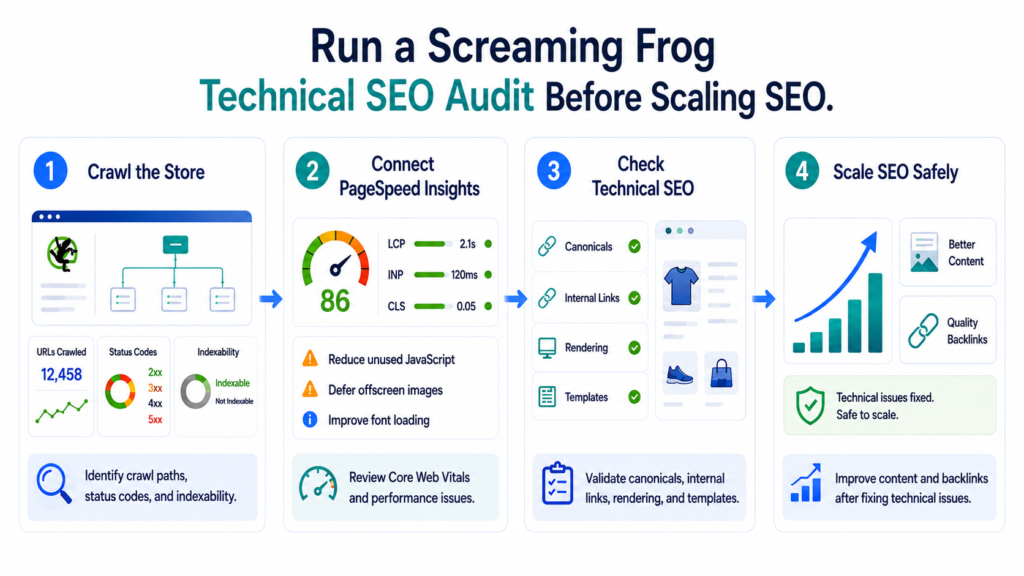
Before investing more in content or backlinks, crawl the store with Screaming Frog and connect PageSpeed Insights. This puts performance diagnostics beside crawl paths, status codes, canonicals, indexability, internal links, and template patterns.
Use the Screaming Frog audit before scaling ecommerce SEO guide to build a repeatable audit process instead of checking isolated URLs.
E-commerce Technical SEO helps store owners, marketing teams, developers, and agencies find technical issues that restrict organic growth. The goal is to make important ecommerce pages easier to crawl, understand, index, load, and rank.
For a deeper review, explore our technical SEO audits or work with our technical SEO specialists to turn crawl and performance data into a prioritized action plan.